 CPC View fc supports images with up to 32,767 pixels in either dimension.
Formats other than CPC require a CPC View Plus! subscription. A free 7 day trial subscription is available from within the extension
CPC View fc supports images with up to 32,767 pixels in either dimension.
Formats other than CPC require a CPC View Plus! subscription. A free 7 day trial subscription is available from within the extension
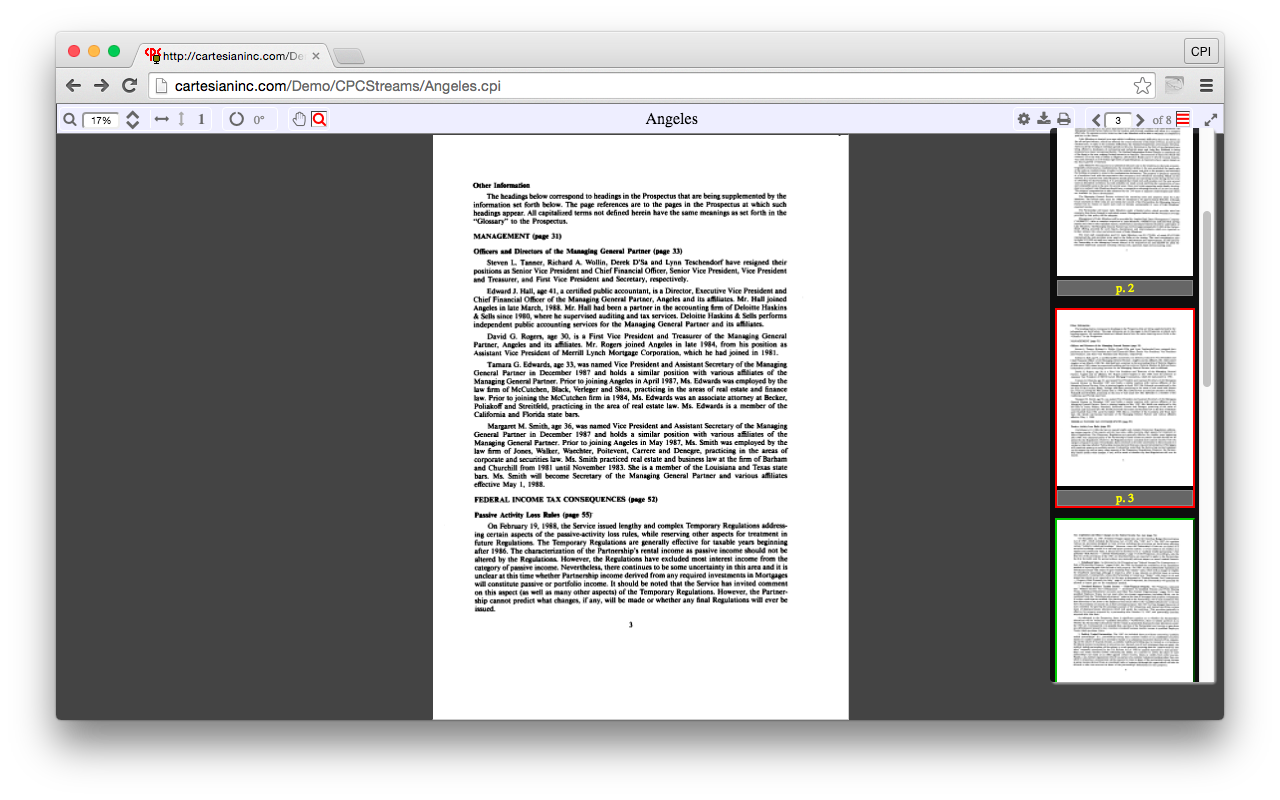 CPC View fc is a Chrome extension that displays
TIFF, JEDMICS, CALS, Portable Anymap,
and CPC documents. The documents are displayed
directly in Chrome's window, along with controls for navigating the document's pages, viewing thumbnails, zooming in and out, rotating, printing, and saving.
CPC View fc is a Chrome extension that displays
TIFF, JEDMICS, CALS, Portable Anymap,
and CPC documents. The documents are displayed
directly in Chrome's window, along with controls for navigating the document's pages, viewing thumbnails, zooming in and out, rotating, printing, and saving.
CPC View fc is freely available from the Chrome Web Store. Once it is installed, simply open a document in Chrome and CPC View fc will display the document directly in the Chrome window. For example, you can open a file in CPC View fc by clicking here.
CPC View fc can also be used to open image documents stored locally on your computer's hard disk. To open a local file, use the Open File... command in Chrome's File menu.
CPC View fc can be removed using the Chrome Extensions page. To access this page, use the Extensions command from the More Tools sub-menu of the Chrome menu button (). Alternatively, you can enter chrome://extensions/ into the Chrome address bar.
CPC View fc supports images with up to 32,767 pixels in either dimension.
Formats other than CPC require a CPC View Plus! subscription. A free 7 day trial subscription is available from within the extension
 The page widget in the CPC View fc toolbar is used to navigate the pages in the document.
The button moves forward one page; the button moves backwards one page.
The current page number is displayed in the text box. Type a page number into this box to go directly to a page.
The page widget in the CPC View fc toolbar is used to navigate the pages in the document.
The button moves forward one page; the button moves backwards one page.
The current page number is displayed in the text box. Type a page number into this box to go directly to a page.
The button displays a popover containing thumbnails of the document's pages. Click on a thumbnail to display that page in the main view. Double-click on a thumbnail to display that page in the main view and close the thumbnail view. (The thumbnail view can also be closed by clicking anywhere outside the view.)
Page navigation via keyboard
To display the next page, type n; to display the previous page, type p.
The and buttons are also available from the right mouse menu. You can also navigate through the pages of the document using the scrolling
keys on the keyboard.
If the document contains only a single page, the page navigation functions are disabled.
 The zoom widget in the CPC View fc toolbar is used to control the magnification of the display.
The button doubles the magnification, zooming in on the page;
the button halves the magnification, zooming out on the page.
The current zoom is displayed in the text box. Type a zoom value into this box to zoom directly to that magnification.
The zoom widget in the CPC View fc toolbar is used to control the magnification of the display.
The button doubles the magnification, zooming in on the page;
the button halves the magnification, zooming out on the page.
The current zoom is displayed in the text box. Type a zoom value into this box to zoom directly to that magnification.
The button displays the page so that it fits the width of the window; the button displays the page so that it fits the height of the window. The 1 button displays the page at full size. The button displays a menu of preset zoom values.
Zoom via mouse wheel
To zoom in, hold down the <Ctrl> key and spin the wheel towards yourself. To zoom out, hold down the <Ctrl> key and spin the wheel away from yourself
Zoom via keyboard
To zoom in on the page, type z; to zoom out, type <Alt>-z.
Zoom via mouse
 The mouse widget in the CPC View fc toolbar selects the current mouse mode which
determines how mouse drags are handled. The button selects
zoom mode. When in zoom mode, you can drag the
left-mouse button to select a rectangular region of the page. Click on the selected region to zoom in on it;
click outside the selected region to clear the selection.
(The button selects scroll mode.)
The mouse widget in the CPC View fc toolbar selects the current mouse mode which
determines how mouse drags are handled. The button selects
zoom mode. When in zoom mode, you can drag the
left-mouse button to select a rectangular region of the page. Click on the selected region to zoom in on it;
click outside the selected region to clear the selection.
(The button selects scroll mode.)
Zooming functionality is also available from the right mouse menu.
Scroll via mouse wheel
To scroll down, spin the wheel away from yourself; to scroll up, spin the wheel towards yourself. To scroll right, hold down the <Alt> key and spin the wheel away from yourself; to scroll left, hold down the <Alt> key and spin the wheel towards yourself;
Scroll via keyboard
The <Page Up> and <Page Down> keys scroll the page up or down by the window size; if you hold down the <Alt> key, they scroll the page left or right by the window size. The <Home> and <End> keys scroll to the top or bottom of the current page; if you hold down the <Alt> key, they scroll to the left or right edge of the current page.
The arrow keys (, , , and ) scroll the page by a small amount in the requested direction; if you hold down the <Shift> key, they scroll the page by half the window size.
If there is no more to view on the current page, the <Page Down>, and keys will move to the top of the next page; the <Page Up>, and keys will move to the bottom of the previous page.
Scroll via mouse
 The mouse widget in the CPC View fc toolbar selects the current mouse mode which
determines how mouse drags are handled. The button selects
scroll mode. When in scroll mode, the
mouse can be used to "grab" a point on the image and drag it around on
the screen. (The button selects zoom mode.)
The mouse widget in the CPC View fc toolbar selects the current mouse mode which
determines how mouse drags are handled. The button selects
scroll mode. When in scroll mode, the
mouse can be used to "grab" a point on the image and drag it around on
the screen. (The button selects zoom mode.)
 The rotate widget in the CPC View fc toolbar controls the display rotation.
The display can be rotated 90°, 180°, or 270°. The current
rotation is displayed on the widget. Click on the widget to select a different rotation.
The rotate widget in the CPC View fc toolbar controls the display rotation.
The display can be rotated 90°, 180°, or 270°. The current
rotation is displayed on the widget. Click on the widget to select a different rotation.
Rotate via keyboard
To rotate the page clockwise 90°, type r; to rotate the page counter-clockwise 90°, type <Alt>-r.
To rotate the page 180°, type u.
 The command widget in the CPC View fc toolbar provides additional document and configuration commands. To print the document, click the button.
To save a copy of the document, click the button.
The command widget in the CPC View fc toolbar provides additional document and configuration commands. To print the document, click the button.
To save a copy of the document, click the button.
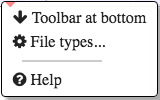 To display a menu of additional commands, click the button.
The following additional commands are available:
To display a menu of additional commands, click the button.
The following additional commands are available:
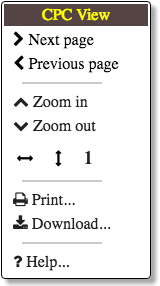 You can quickly access many viewer functions using the CPC View fc right mouse menu.
Just click the right mouse button anywhere over the viewer and the menu will appear.
You can quickly access many viewer functions using the CPC View fc right mouse menu.
Just click the right mouse button anywhere over the viewer and the menu will appear.
To display the next page, click Next page; to display the previous page, click Previous page.
To zoom in on the page, click Zoom in; to zoom out on the page, click Zoom out. To display the page so that it fits the width of the window, click the button; to display the page so that it fits the height of the window, click the button; to display the page at full size, click the 1 button.
To print the document, click Print... ;
to save a copy of the document, click Download... ;
to open this guide, click Help....

If the document contains a table of contents, CPC View fc will display the Contents Bar. The Contents Bar provides information about the currently displayed section of the document, as well as tools with which to navigate between the document's sections.
The name of the current section is displayed in the center of the bar. The page range of the current section is displayed at the right edge of the bar.
To display the next section in the table of contents, click the button; to display the previous section, click the button.
If you click on the section name (or the button), a popover will appear displaying the complete table of contents for the document. To display the first page of an entry in the popover, click on the entry's title; To display the page and also close the popover, double-click on the entry. (You can also close the popover by clicking anywhere outside the popover.)
If the CPC View fc toolbar is at the top of the document window, the Contents Bar will be displayed at the bottom of the document window; if the CPC View fc toolbar is at the bottom of the document window, the Contents Bar will be displayed at the top of the document window
| © 2016 Cartesian Products, Inc. | Contact Cartesian |